
Map Network Drive
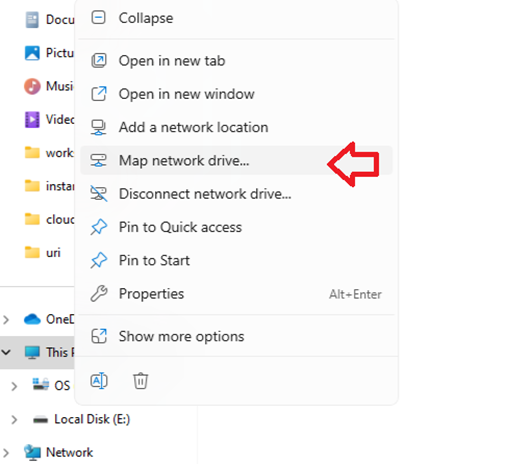
From an Explorer window, right click on This PC and select “Map network drive…”
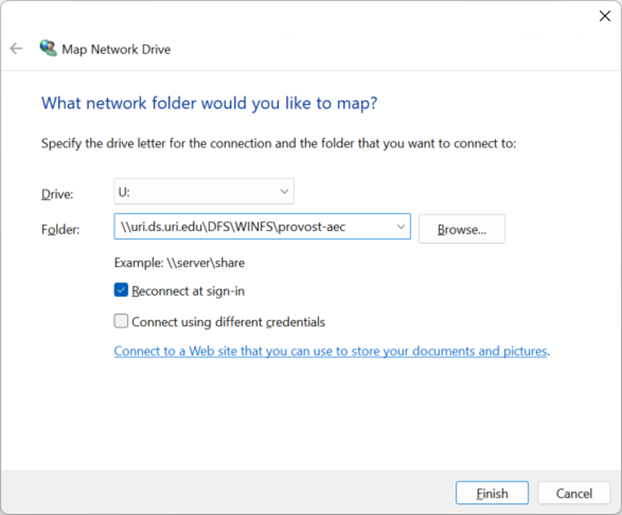
Select your drive (U:\ in this example) and write in the folder you want to connect to (\\uri.ds.uri.edu\DFS\WINFS\provost-aec) (change to your folder where appropriate).
Check “Reconnect at sign-in” only if you’re not using a shared workstation.
Disconnect a Drive
(only follow this section if you need to disconnect an existing drive)
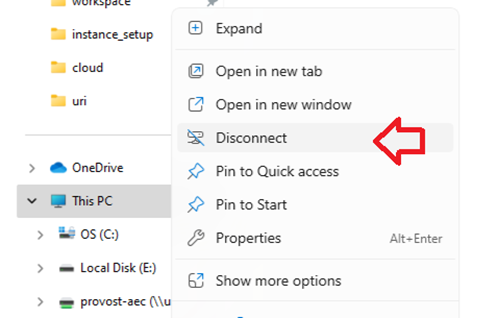
To unmap an existing drive, right click and choose disconnect.
Command Line
(only follow this section if you to use the command line to map a drive)
Command line (optional / advanced):
#delete existing connection
net use U: /d
#map (change "user_id" and "***password***")
net use U: "\\uri.ds.uri.edu\DFS\WINFS\provost-aec" /user:URI\user_id ***password*** /PERSISTENT:Y