
Connecting to a Windows file share
Windows
Connect (for most people)
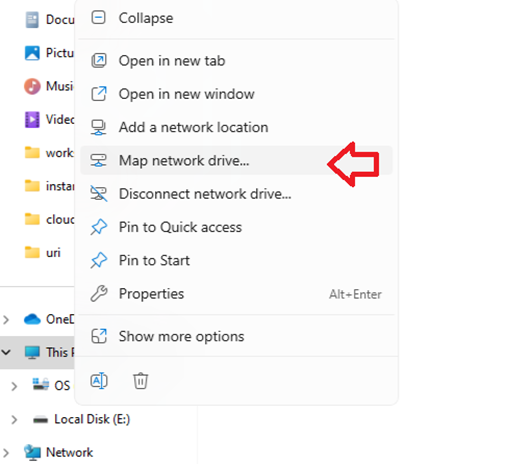
From an Explorer window, right click on This PC and select “Map network drive…”
Drive: choose a drive letter (usually decided by your local department). "U:" in this example.
Folder: enter the address to the share, usually given by ITS, but is the same for everyone in the same unit/dept.
Optionally, check “Reconnect at sign-in” if the machin you are using is personal to you, and you want this to be persistent through reboots.
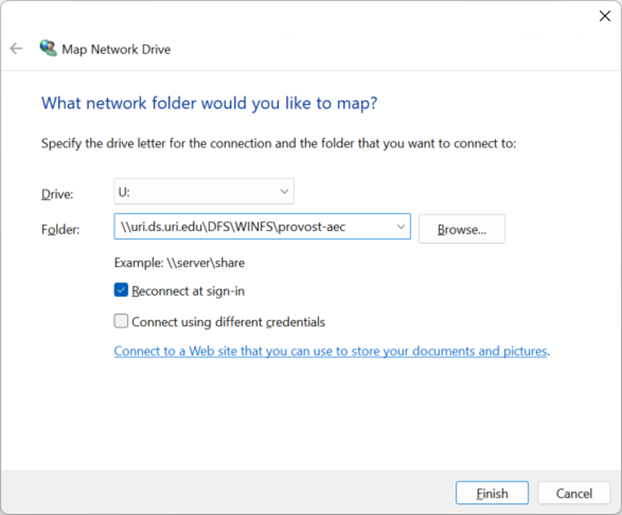
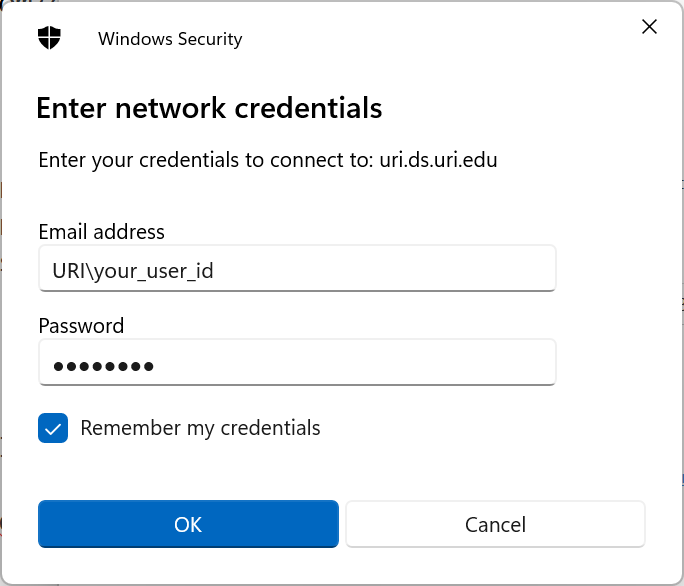
Check "Connect using different credentials" -- not always necessary, but this direction is more universal. You want to get to a prompt like the below, where you can enter your URI credentials. PINs, fingerprints, etc. -- none of these will work. Enter your URI credentials like below.
Email address: "URI\jsmith"
Password: your URI single sign-on (SSO) password
Optionally, check remember my credentials if this machine is personal to you.
Connect using command line:
Usually this is used by IT/technical staff as an alternative way to connect.
Disconnect a drive U:
net use U: /d
Connect to a drive U:
net use U: "\\uri.ds.uri.edu\DFS\WINFS\provost-aec" /user:URI\<your_user_id> <password> /PERSISTENT:Y
Disconnect
Usually not needed, but useful if you intend to disconnect to some connection that was made in the past.
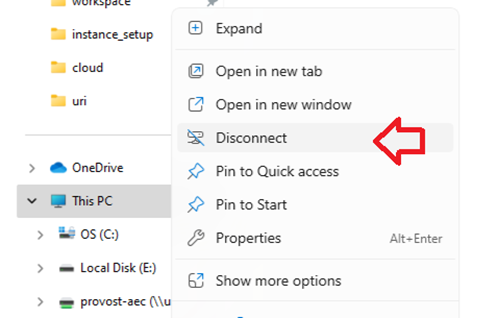
This PC --> right-click --> Disconnect
Macintosh
To be written