
Connecting to a Windows file share
VPNOff-Campus Access
URI faculty, staff, instructors, affiliates, etc. -- all non-student populations are already eligible to self-serve VPN setup andoff-campus access: https://notes.its.uri.edu/services/94530c3f3f00b35e6d294546faa3667f75f63fff22/books/public/page/get-vpn
Students are not automatically granted VPN access, but it can be granted by request by their supervising professor, employer, etc., or by ITS staff:https://uriprod.service-now.com/sp?id=sc_cat_item&sys_id=f25739da970c3910662ff7021153af4e
If you are on a Windows machine:
Connect (for most people)
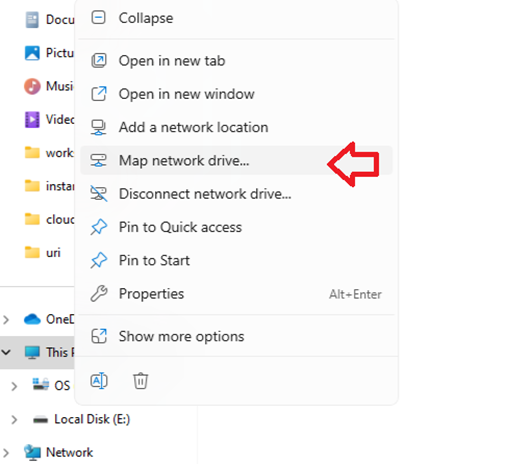
From an Explorer window, right click on This PC and select “Map network drive…”
Drive: choose a drive letter (usually decided by your local department). "U:" in this example.
Folder: enter the address to the share, usually given by ITS, and is usually the same for everyone in the same unit/dept.
Optionally, check “Reconnect at sign-in” if the machine you are using is personal to you, and you want this to be persistent through reboots.
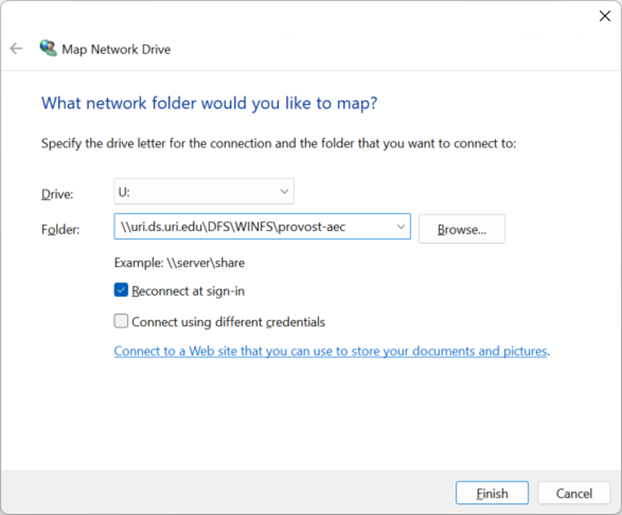
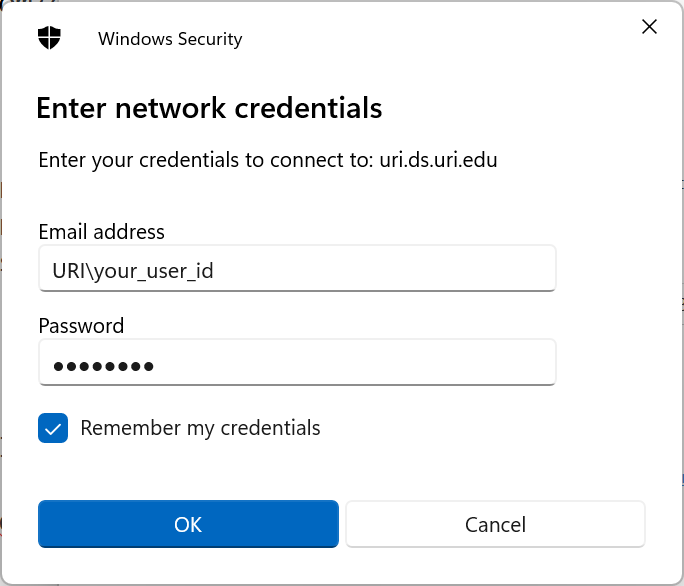
Check "Connect using different credentials" -- not always necessary, but this direction is more universal. You want to get to a prompt like the below, where you can enter your URI credentials. PINs, fingerprints, etc. -- none of these will work. Enter your URI credentials like below.
Email address: "URI\jsmith"
Password: your URI single sign-on (SSO) password
Optionally, check remember my credentials if this machine is personal to you.
Connect using command line:
Usually this is used by IT/technical staff as an alternative way to connect.
Disconnect a drive U:
net use U: /d
Connect to a drive U:
net use U: "\\uri.ds.uri.edu\DFS\WINFS\provost-aec" /user:URI\<your_user_id> * /PERSISTENT:Y
The asterisk in the above command will prompt you to enter the password.
Disconnect
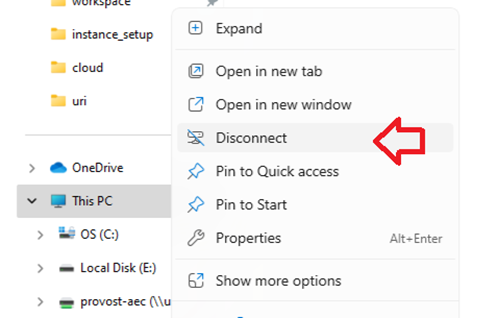
Usually not needed, but useful if you intend to disconnect to some connection that was made in the past.
This PC --> right-click --> Disconnect
If you are on a Mac machine:
To be written